Put your ssh experience in Windows on Steroids

Marco Franssen
6 min read•1161 words

Loading...
Marco Franssen
In this blogpost I want to show you how you can make your life easier to work with Linux VM's and Git by configuring SSH on your Windows Machine in a secure but convenient way. Let me first elaborate a little further why you would want to apply the tips and tricks from this blog post.
Git has become the de-facto standard of vcs over the past few years. You are probably using it for all your software development projects, and maybe even for your web blog, when you are blogging in markdown using a static site generator.
You also might be using Nodejs, python or other programming languages which are easier to run on Linux. Probably you have been using a Virtualbox VM or you are deploying your solutions in the cloud. The last thing you want is entering your password each time you connect to the VM via PuTTY. Or when you are trying to send some file to the VM using for example WinSCP.
Furthermore I usually use vagrant for my VM's. Using the setup below will improve my experience.
This blogpost will help you putting the settings in place so you only have to enter your ssh-key's password only once. No matter what tool you are using following settings will apply to all of them when they use an ssh key to authenticate.
Prerequisites:
In order to generate an ssh key you can simply use ssh-keygen.exe which can be found in your Git installation directory in the bin folder. It is mandatory you name the keys exactly as in this blog post, since open_ssh will look for them using those names.
Open your Git Bash and execute following commands to generate your open-ssh key. Make sure you put a strong password on the key when prompted. This makes sure no one can use your key when you accidentally loose it somewhere.
$ ssh-keygen -t rsa -b 4096 -C "your@email.domain"
Generating public/private rsa key pair.
Enter file in which to save the key (/c/Users/Marco/.ssh/id_rsa):
Enter passphrase (empty for no passphrase):
Enter same passphrase again:
Your identification has been saved in ~/.ssh/id_rsa.
Your public key has been saved in ~/.ssh/id_rsa.pub.
The key fingerprint is:
30:a5:c1:7a:bb:00:bf:7c:24:b7:4d:f1:d6:3d:e5:7e your@email.domain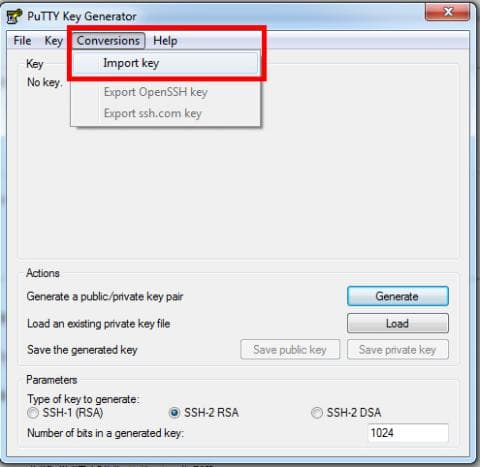
Now we have the ssh keys in place to be able to setup ssh connections either via Bash (id_rsa) or via PuTTY (id_rsa.ppk). The only problem is we have to enter the password each time in bash and we have to manually load the PuTTY key in pageant.exe.
The Pageant program that was installed as part of the PuTTY package, can store your keys and give them to mRemote, WinSCP and PuTTY as required. You can open pageant.exe and load your id_rsa.ppk key manually and provide the password. From now on PuTTY, WinSCP and any program that serves as a fronted for them (like mRemote) will first consult with the Pageant program if there is a key to use for the connection.
You might want to load this key automatically at startup. This can easily be done by using one of the following methods:
ppk suffix, you should be able to simply add the key files to the Windows "startup" folder.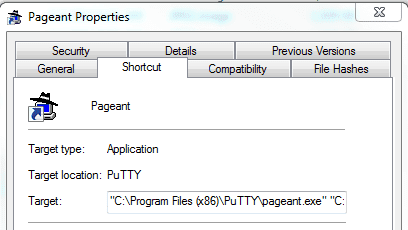
This configuration is optional, but doing it will allow you once you’ve SSH ed into a machine to continue and SSH from it, to the next machine, with the same key. This way you don't have to put your SSH key on those servers.
Your private key should always stay as close as possible to you!
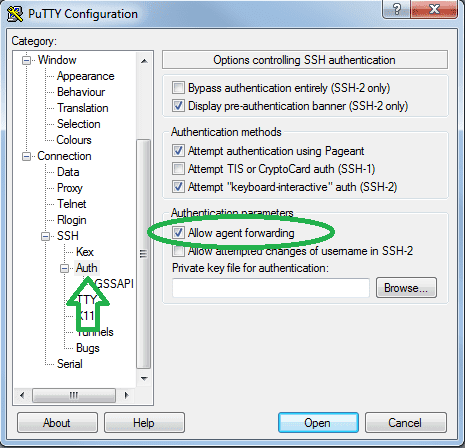
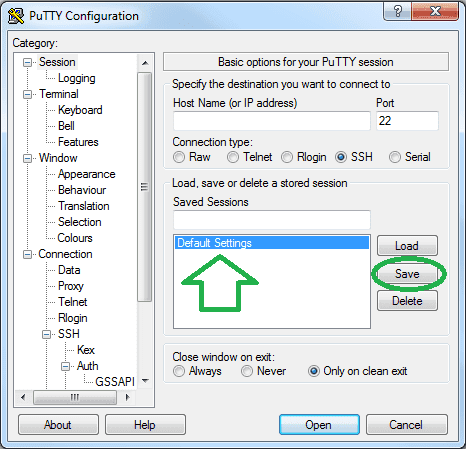
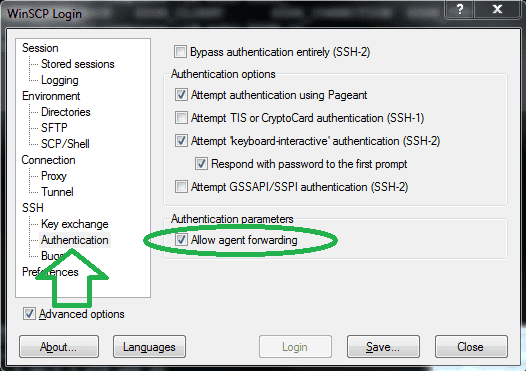
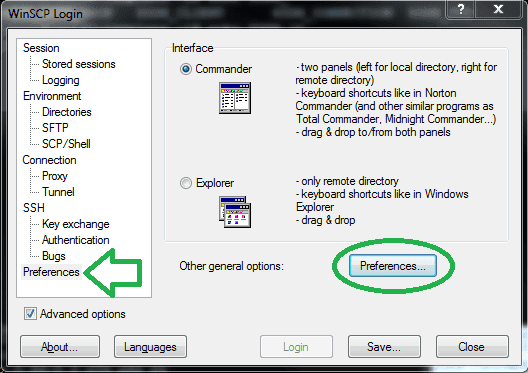
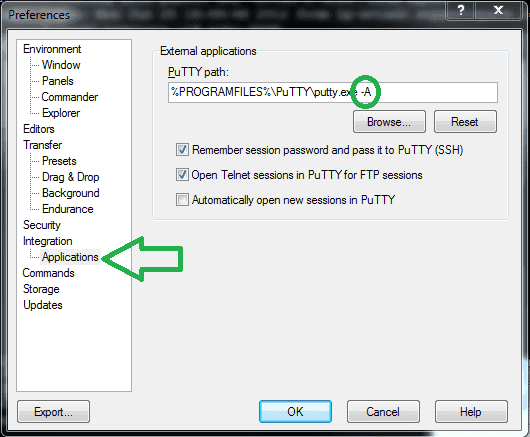
Now we can leverage the full power of SSH using PuTTY. However for bash we still have to provide the password for our key each time we open a new bash.
We can solve this by starting an ssh-agent to cache the key.
It can be easily configured by adding following .profile file to your %USERPROFILE% on the same level where you can find your .shh folder.
declare -x SSH_ENV="$HOME/.ssh/environment"

# start the ssh-agent
function start_agent {
    echo "Initializing new SSH agent..."
    # spawn ssh-agent
    ssh-agent | sed 's/^echo/#echo/' > "${SSH_ENV}"
    echo succeeded
    chmod 600 "${SSH_ENV}"
    . "${SSH_ENV}" > /dev/null
    ssh-add
}
# test for identities
function test_identities {
    # test whether standard identities have been added to the agent already
    ssh-add -l | grep "The agent has no identities" > /dev/null
    if [ $? -eq 0 ]; then
        ssh-add
        # $SSH_AUTH_SOCK broken so we start a new proper agent
        if [ $? -eq 2 ];then
            start_agent
        fi
    fi
}
# check for running ssh-agent with proper $SSH_AGENT_PID
if [ -n "$SSH_AGENT_PID" ]; then
    ps -f -u "${USERNAME}" | grep "$SSH_AGENT_PID" | grep ssh-agent > /dev/null
    if [ $? -eq 0 ]; then
        test_identities
    fi
else
    if [ -f "$SSH_ENV" ]; then
    . "$SSH_ENV" > /dev/null
    fi
    ps -f -u "${USERNAME}" | grep "$SSH_AGENT_PID" | grep ssh-agent > /dev/null
    if [ $? -eq 0 ]; then
        test_identities
    else
        start_agent
    fi
fi
Now your key will be cached once you have entered the password in bash one time. Each time you close bash and (re)open a new one your key will automatically be loaded.
Your folder structure will look something like this:
c:\Users\Marco\.profile
c:\Users\Marco\.ssh
c:\Users\Marco\.ssh\id_rsa
c:\Users\Marco\.ssh\id_rsa.ppk
c:\Users\Marco\.ssh\id_rsa.pubPut the contents of your id_rsa.pub key on a Linux server in the following folder: ~/.ssh/authorized_keys
From now on you will automatically login to the server without providing a password.
localhost -ssh -l marco -P 22
On connection your server will show something like following message:
Using username "marco".
Authenticating with public key "your@email.domain" from agent
Last login: Sat Sep 12 14:48:21 2015 from 192.168.1.33
CoreOS stable (766.3.0)
marco@dockertest ~ $
I hope you will benefit from your SSH on steroids.
- No more entering passwords when pushing or pulling Git.
- No more putting your private ssh keys on a server or vm.
- No more logging in to a vm using a password.
- No more passwords when using WinSCP.
- Don't forget to lock your computer, since your key is cached now!

Marco Franssen
Since a while I have been using Virtualbox + vagrant to do web development based on Linux, Nginx and NodeJS. However I also still do Windows development occasionally. For that reason I needed a way to easily switch from Virtualbox to Hyper-V or the other way around, as Hyper-V is required for example for the Windows Phone emulator. Hyper-V can not run together with Virtualbox as they both need an Hypervisor. Unfortunately you can't have 2 Hypervisors running. Therefore we need to disable Hyper-…

Marco Franssen
In this blog post I want to highlight the similarities and the differences between Jasmine and Mocha. In this comparison I will focus on the latest versions of both libraries. As of this writing Jasmine 2.4 and Mocha 2.3. When comparing both libraries at NPMCompare you notice that Mocha is the more popular framework today. Mocha has more frequent updates, more downloads and more forks on Github. Although both frameworks are pretty popular and do have a lot of similarities. Lets go have a look a…

Marco Franssen
In this blog post I want to show you how you can use Gulp.js to automate some tasks to check the quality of your code. Before we deep dive into the subject and the coding examples I first want to give you a short introduction on what Gulp.js actually is. So if you already know what Gulp.js is about you can move on to the next chapter. Easy to use By preferring code over configuration, gulp keeps things simple and makes complex tasks manageable. Efficient Using the power of node streams, gulp gi…
Marco Franssen
In the previous part of this series we had a look on building a bare Debian VM with the bare minimum packages installed to run a web server. In this part we will have a look on how we can improve our packer script with user variables and how to use the file and shell provisioner. User variables Variables can be easily added to the packer script by adding following JSON. Best practice is to put your variables as the first property in your JSON, before your builders. This way you have all the c…